![Logic Controls Logo - New.png]](https://support.logiccontrols.com/hs-fs/hubfs/Logic%20Controls%20Logo%20-%20New.png?height=45&name=Logic%20Controls%20Logo%20-%20New.png)
Kitchen Go KDS – Initial Setup Guide for Android 13
This guide walks you through the initial setup of your KitchenGo KDS controller. It is intended for first time users and assumes no prior familiarity with the system.
Step 1: Configure Network Settings
Check with your network administrator and verify if you need to set a static IP address to each device, or if the devices have reserved IP addresses already configured by your administrator.
When you first receive your Kitchen Go KDS controller, the first task is to confirm or update the network settings.
- From the main screen, open Settings.
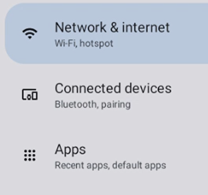
- Select Network & Internet.
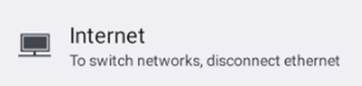
- Tap Internet.
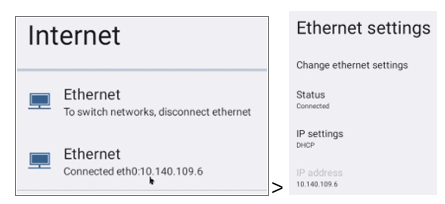
- Tap Ethernet
- Here you can view the current IP address.
- You can also change the IP assignment method if needed.
Optional: Set a Static IP Address
If your network requires a static IP:
- Tap Change Ethernet Settings.
- Check the box to Show Advanced Options.
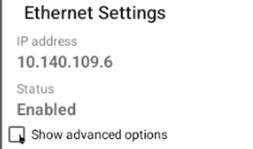
- Tap IP Settings drop down

- Enter the required network information (IP address, gateway, DNS, etc.).
- Back out to the main internet menu and Disable WIFI

- Once complete, return to the main Settings menu.
Step 2: Set Date and Time
Accurate date and time settings are required for proper system operation.
- From Settings, scroll down and select System.
- Open Date & Time.

- Verify the correct time zone is pulled from the network
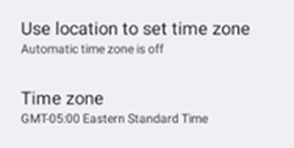
Optional: Set Manual Time Zone
- If the time zone isn’t pulling from the network correctly
- Toggle Set time zone automatically OFF.
- Manually select your correct time zone.
- Once complete, return to the main screen.
Step 3: Install Kitchen Go KDS App from USB
- From the main screen, tap the system app menu.
- Open the Files App and locate the USB drive
- It will likely be called Mass Storage
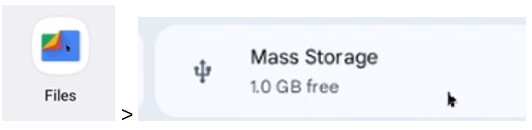
- It will likely be called Mass Storage
- Select the correct APK file and double-click it.
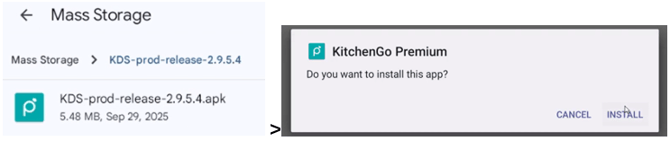
- When prompted with a warning, tap More Details, then choose Install Anyway
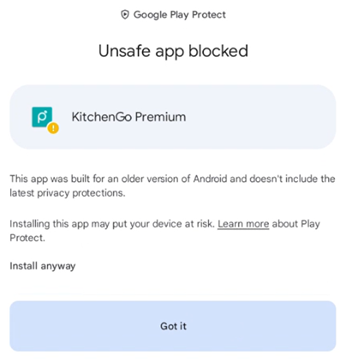
- When installation completes, return to Settings before opening the app.
- If prompted for an update, allow the update and select Done, not Open.
Step 4: Enable Required App Permissions
- Return to Settings.
- Select Apps.
- Scroll down and tap See all apps (you may see a total number such as “39 apps”).

- Scroll until you find Kitchen Go Premium and select it.
- Tap Permissions
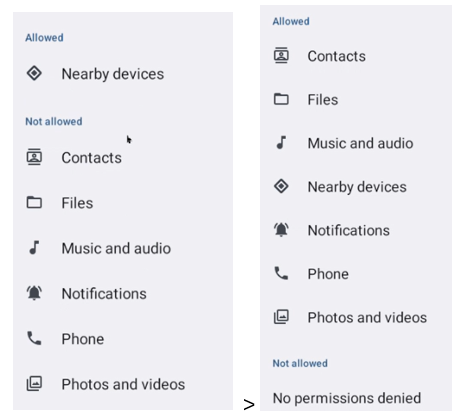
- Enable the following permissions:
- Contacts
- Files
- Music and Audio
- Notifications
- Phone
- Photos and Videos
- Scroll down and open Advanced Settings.
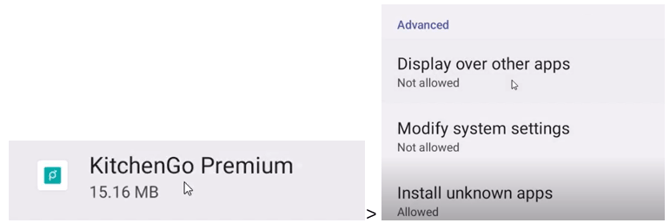
- Enable the following permissions:
- Allow display over other apps
- Allow modify system settings
- Install unknown apps
These permissions allow the application to update and function correctly.
Exit all the way back to the main screen.
Step 5: Launch and Log In to Kitchen Go Premium
- Open the Kitchen Go Premium app.
- Review and Agree to the Privacy Policy.
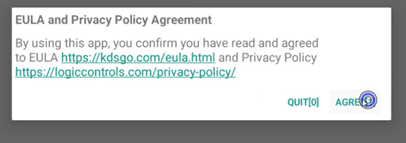
- Log in using the credentials provided by your Logic Controls technician.

Step 6: Assign Station (Controller) Number
-
- If this is your first KDS, the system may automatically assign Station 1.
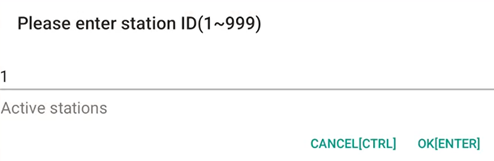
- If not, you will be prompted to assign a controller number.
- Choose any number between 1 and 999.
- Confirm your selection.
Step 7: Check for App Updates (Optional)
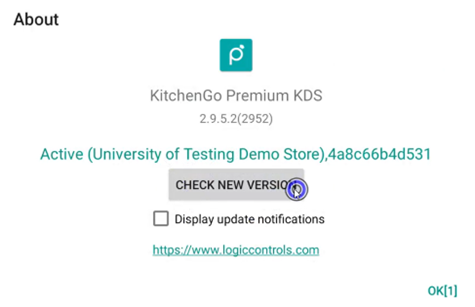
- Within the Kitchen Go Premium app, tap About.
- Check for newer versions of the application.
- Update if available.
Step 8: Change Station Number (If Needed)
If you need to change the station number later:
- Open Kitchen Go Premium.
- Go to Settings.
- Select General.
- Tap Station Number.

- Enter the new station number.
- Tap OK to save.
This change will update the station number on this controller and synchronize it with any other KDS controllers in your store.
Setup Complete
Your Kitchen Go KDS controller is now configured and ready for use. If you experience any issues, please contact your KDS Go or Logic Controls support representative.