![Logic Controls Logo - New.png]](https://support.logiccontrols.com/hs-fs/hubfs/Logic%20Controls%20Logo%20-%20New.png?height=45&name=Logic%20Controls%20Logo%20-%20New.png)
If you have the USB interface OPOS display, please install USB driver first before
installing the OPOS drivers.
OPOS DRIVER INSTALLATION
1. Download the OPOS drivers from the link below:
2. Extract the Zip file to a folder on your computer.
3. Click on the file <setup.exe> to start installation and follow instructions on the
screen to go through installation. If running windows 11 the file may be blocked, you will need to choose to run anyways.
INSTALL VIA COMMAND LINE
Additionally if you want to create a scripted install, you can run the <setup.exe> file with the following command line parameters:
/verysilent - Install with default settings without interactive message boxes.
/dir="x\dirname" - Overwrite the default installation directory.
/oposlog - enable log feature for diagnostic.
/noposlog - disable log feature
OPOS DRIVER CONFIGURATION SETUP
1. After installation, you have to setup the OPOS driver by running
"Logic Controls Line Display OPOS Configuration" in your programs list from the windows start menu, or directly running the PDSetup.exe from the folder you installed it to.
You may need to "Run as Administrator" to get the application to launch depending on your windows setup.
The left part of the dialog window (1) is for setting up OPOS and the right part (2) is for testing
commands sent to the OPOS display.
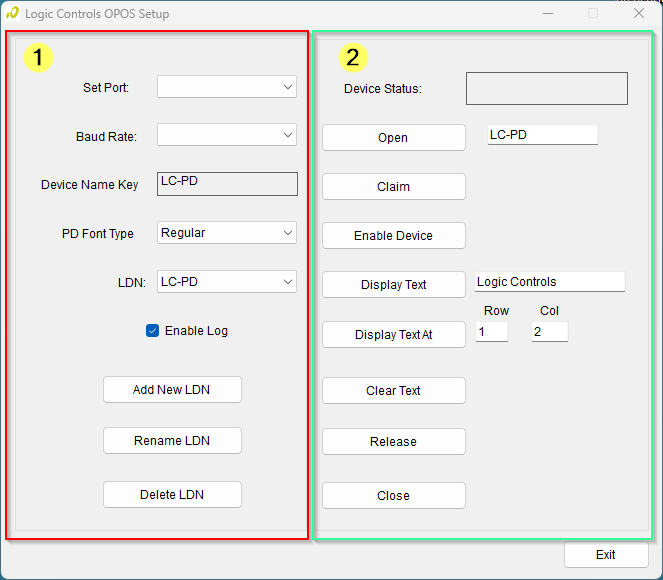
2. Select appropriate port and then setup LDN (Logic Device Name). Click Add new LDN.
A new form will be displayed, name a new LDN. For example: "LD9". Then click OK.
3. To rename an LDN or delete an LDN, click Rename LDN or Delete LDN.
4. To test the pole display, follow the order of buttons. First click "Open", then
"Claim", then "Enable Device". Now the pole display is ready to display messages.
5. Click on "DisplayText", a string is displayed on the pole display. Test other
functions to verify operations.
6. Click on "Release" and then "Close". Click on "Exit" to quit the program. The OPOS
driver has been setup and ready to run OPOS application software.