![Logic Controls Logo - New.png]](https://support.logiccontrols.com/hs-fs/hubfs/Logic%20Controls%20Logo%20-%20New.png?height=45&name=Logic%20Controls%20Logo%20-%20New.png)
-
Create and configure a Twilio account. https://www.twilio.com
-
Once you have an account and phone number, you will need to link it to the application.
Connecting your Twilio account to the KDS
- Login to the store’s dashboard. https://kdsgo.com
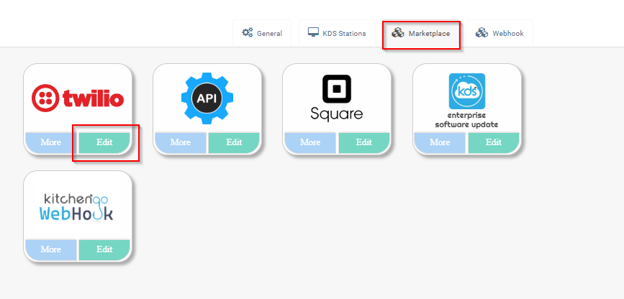
- Navigate to the “Marketplace” tab.
- Select “Edit” on the Twilio Icon.
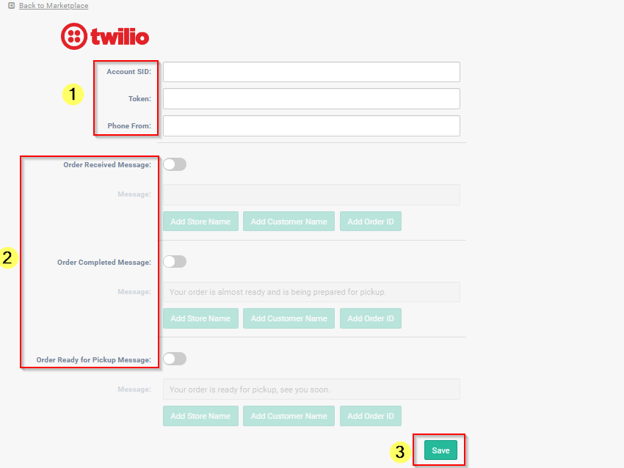
From the configuration screen, complete the data required:
- Enter the “account SID”, “Token” and “Phone from number” from your Twilio account.
- Enable your message options, customize your messages if necessary.
- Save your settings
-
In the KitchenGo software settings, in General settings enable “SMS feature enabled”.
-
In your XML order, you will need to have the <Phone></Phone> tag present with the customer’s phone number you wish to send the text to.